

Before you begin
An imported or authored screenplay, developed Cast Members, and a Production Lookbook. Ask your agent to develop any missing Cast Design first. This example uses the existing Big Fish project; you can follow the same steps with your own character.
What you’ll do
A cast candidate for each Look you need, a wardrobe plan tied to scenes, and a picked character sheet for each costume. You choose how many alternatives to explore.
Choose an audition or a quick pass
Casting Director develops the character and organizes Looks, casting rounds, and costumes. Media Producer generates the images. You can direct each choice through a multi-option audition, or keep the conversation simple and ask the agent to make one option at a time.
- Use an audition when you want to compare different faces, builds, or interpretations before committing to a character. You can also compare several sheets of the same costume after casting.
- Use the quick approach when the design is already clear, the character has one appearance, or you want a first set of references with less back-and-forth. Basilica and Sintel were developed with this simpler, agent-led approach.
- Both approaches start from the screenplay and character design. Multiple candidates are a creative choice; you do not need a large audition for every role.
Keep one person together across scenes
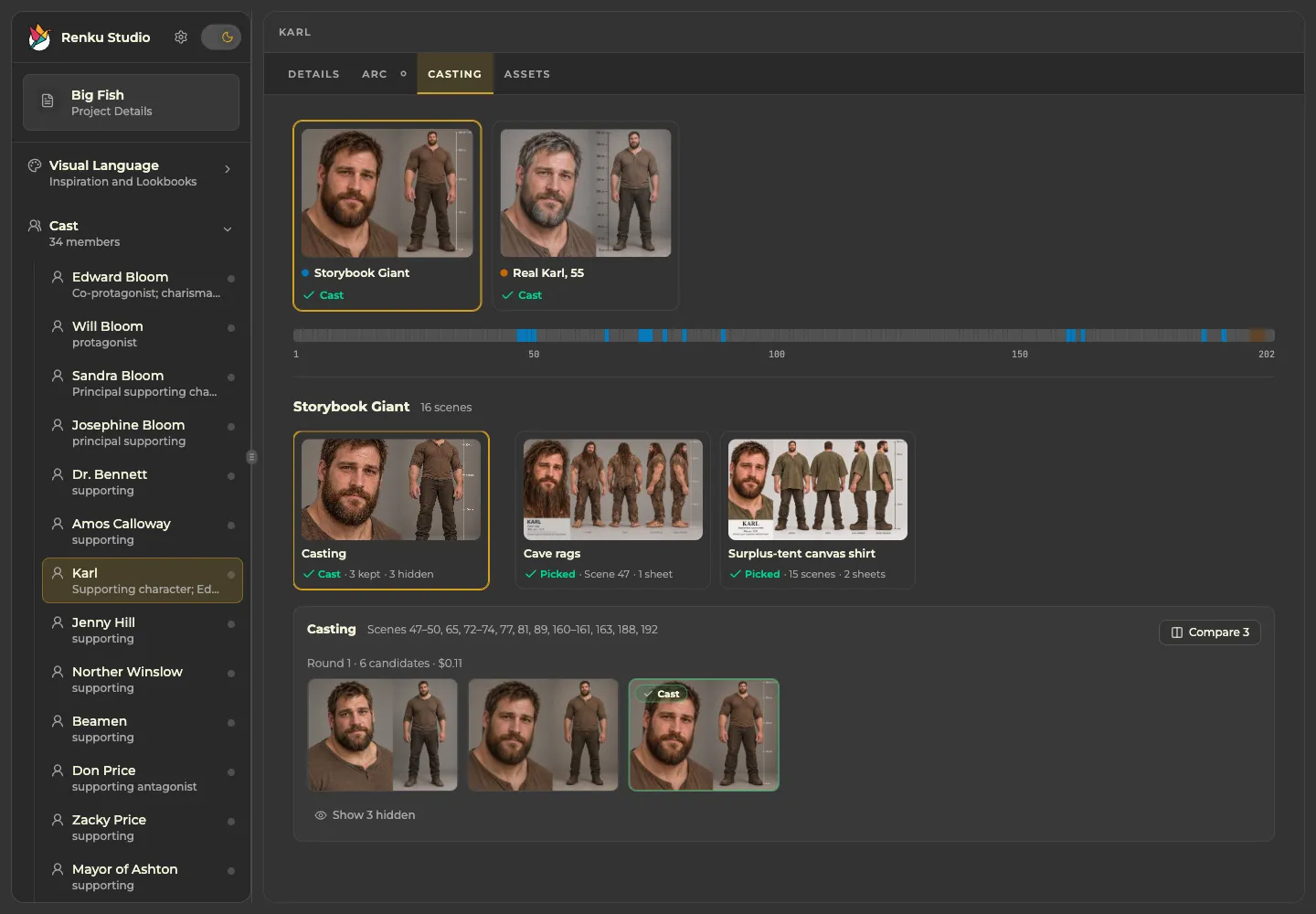
A Cast Member represents a person. A Look represents an age or major change in physique for particular scenes. Karl’s “Storybook Giant” is the towering figure in Edward’s tales; “Real Karl, 55” is his later, more ordinary-scale appearance. They remain the same Karl.
- Ask Casting Director to propose Looks and assign their scenes. For Karl, keep the giant and real-world appearances separate within one Cast Member. The same principle covers a character appearing as a child, young adult, and older adult.
- In supported Codex Desktop sessions, the Renku plugin shows the proposed Looks on a scene strip. Move scenes between Looks there; ask in chat to rename, add, or split a Look. Send the plan back for the agent to save.
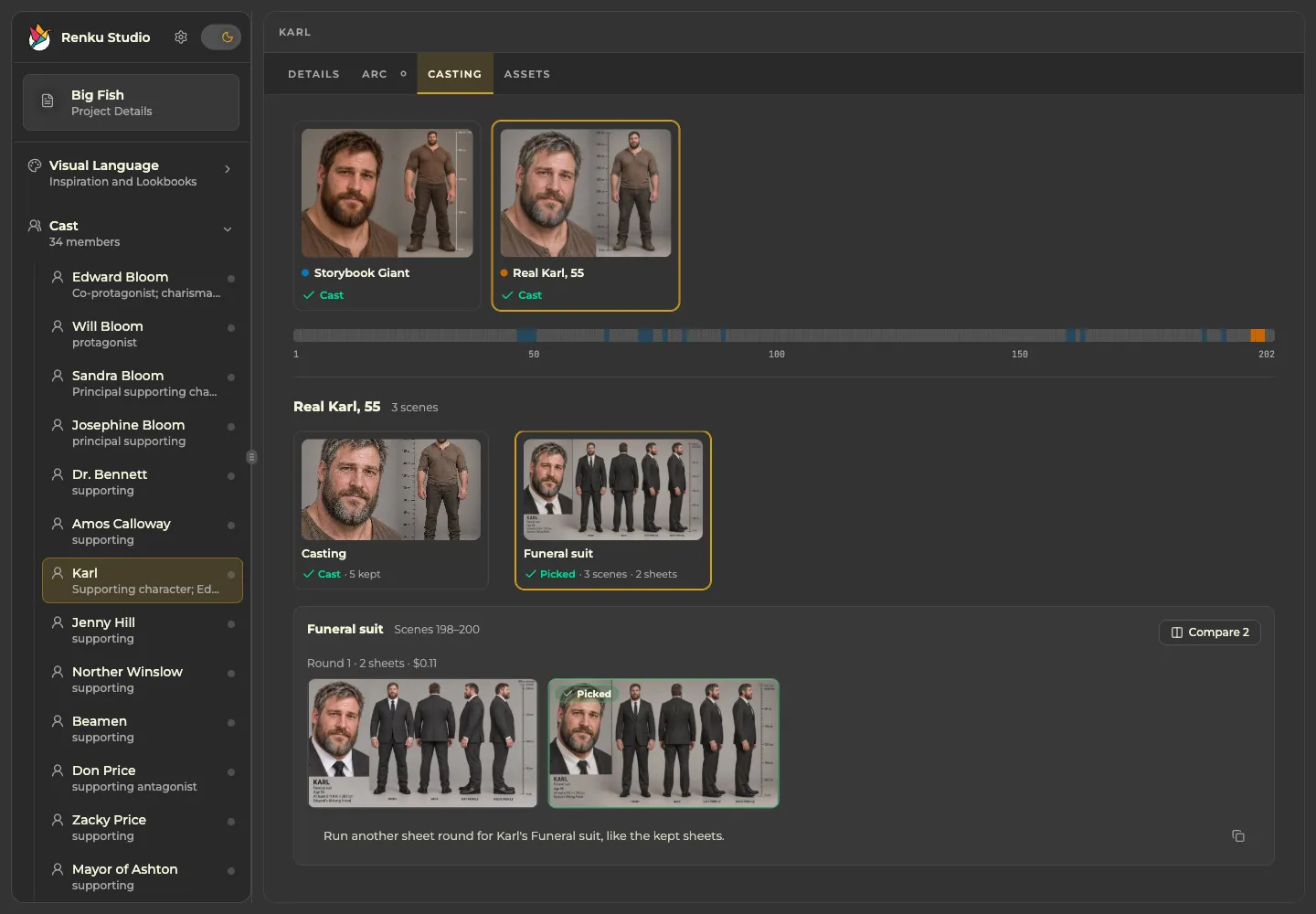
- In Studio, open Cast > Karl > Casting. Select a Look card to see its rounds and costumes; the strip highlights its scenes. In this project, Real Karl covers Scenes 198–200.
- A character with no age or build change needs only one Look. A different shirt or coat belongs to a costume within that Look.
Plan Karl’s Looks from the screenplay: the Storybook Giant and the later Real Karl. Keep both within one Cast Member and show me which scenes belong to each.
Set up a casting round
A casting round generates candidates for one Look. In the Codex plugin’s round panel, review the brief and identity references, choose models and candidate counts, set the image detail level, and review the estimated cost. The round confirmation covers all images in that round.
- Start with one Look. Tell the agent how much variety you want, and supply a likeness reference if you have one. The agent prepares the casting brief from the saved design and your direction.
- Review the round panel before generating. Counts are per model, so two models with three candidates each produce six options. Change the counts or detail level to suit the comparison you need; some models may have no estimate available.
- Confirm Generate once for the round. Media Producer makes the candidates and adds them as they finish; the Codex casting board fills in as results arrive.
- With Claude Code or another host without these panels, the agent presents the round in chat for confirmation. Review its images in Studio’s Casting tab.
Prepare a casting round for Karl’s Storybook Giant Look with six candidates. I want a gentle, slightly awkward presence despite his enormous size. Show me the options and estimated cost before generating.
Hide, compare, and cast
Review the face and full-length figure together. You are choosing the person and build for this Look before developing the final costume sheets. The Codex casting board and Studio’s Casting tab share the comparison view.
- Hide candidates you do not want to carry forward. Hidden options fold away; Show hidden lets you revisit them.
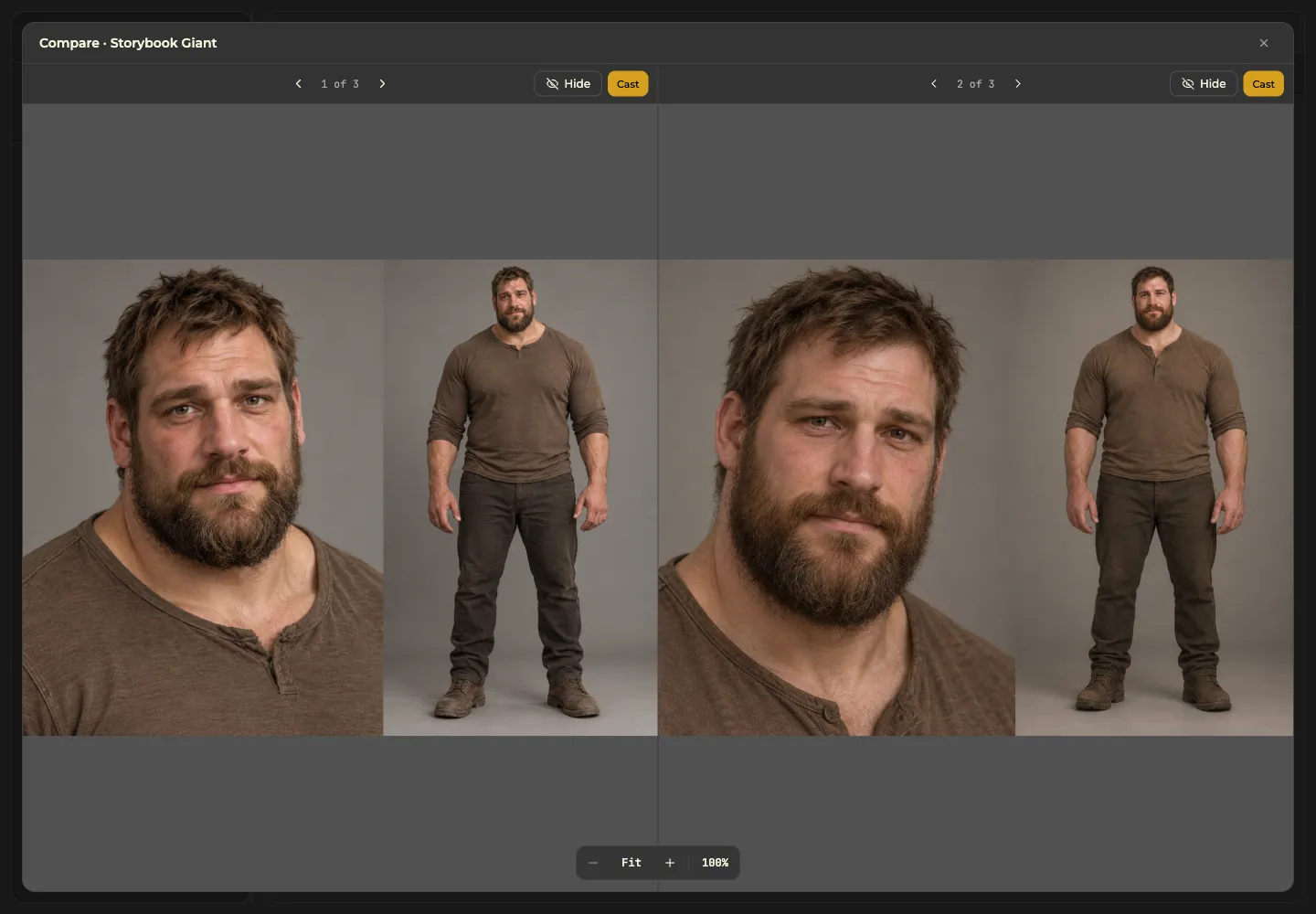
- Open Compare to see two kept candidates side by side. Step through each side independently, keeping one as your reference while the other changes. Zoom in when a face or detail needs closer inspection.
- Choose Cast on the candidate you want for this Look. Selecting a Look card at the top only changes what you are viewing; Cast chooses the candidate.
- For another round, hide the options you dislike and use More like these in the Codex board, adding notes about what to change. It uses every kept image as a reference. In Studio, ask your agent for another round based on the kept candidates.
- Cast the next Look with the earlier Look’s chosen candidate as an identity reference. For Karl, change the scale and age while preserving a recognizable person.
Prepare another casting round for this Look using the kept candidates as references. Keep their warmth, but make the expression less polished.
Plan costumes within each Look
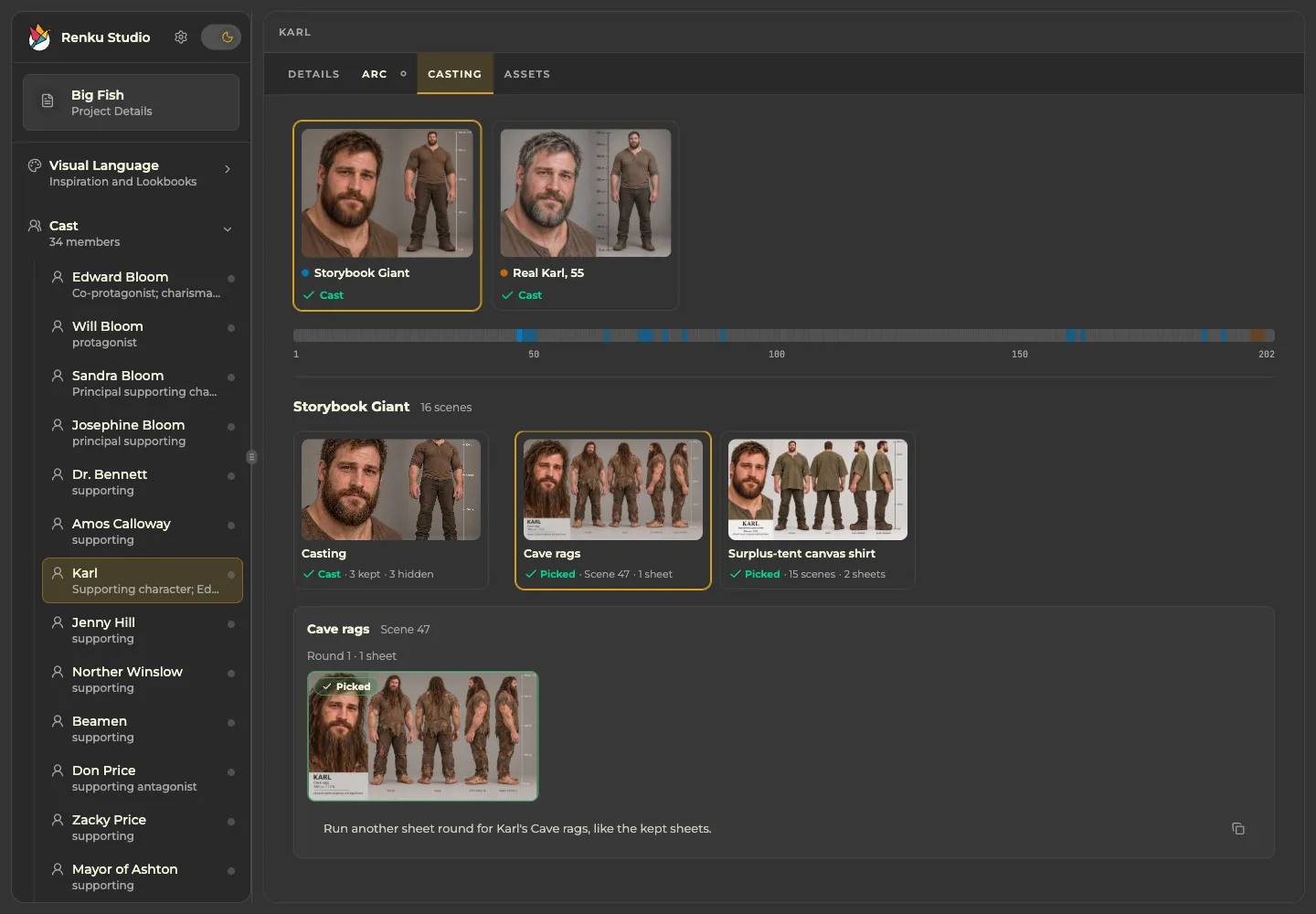
After choosing the person, plan what they wear and where. Casting Director turns the screenplay and design into costumes with scene assignments. Karl’s giant Look has “Cave rags” for Scene 47 and “Surplus-tent canvas shirt” for the following appearances; Real Karl has a “Funeral suit”.
- Ask for a wardrobe plan for the cast Looks. Review the clothing and continuity notes, then check that each scene uses the intended costume.
- In the Codex wardrobe panel, adjust costume assignments on the scene strip and send the plan back. Ask the agent in chat for changes to costume names or descriptions.
- In Studio, the selected Look shows a Casting card and a card for each costume. Choosing a costume shows its sheet rounds and highlights its scenes.
Plan Karl’s costumes for both Looks from the screenplay. Show me their scene assignments before we make character sheets.
Generate and pick character sheets
Character sheets turn the cast identity and wardrobe into reusable continuity references. Each costume has its own sheet rounds and one picked sheet. The Look’s cast candidate supplies the default identity reference, so a costume change can preserve the same face and build.
- Ask for character sheet options for one or more costumes of a cast Look. In the Codex round panel, check the costumes you want, choose models, counts, and detail, and confirm the estimate. Counts apply to each checked costume: two sheets for two costumes means four images.
- Review sheets on the Codex board or the costume’s card in Studio’s Casting tab. Hide weak options and use Compare when there is more than one kept sheet.
- Choose Pick on one sheet per costume. Generating or importing a sheet does not pick it automatically. You can also ask the agent to pick the specific sheet you identify.
- Check the face, proportions, clothing, complete body views, and height guidance. If the character’s height is unknown, clarify it with the agent before making a final continuity sheet.
- The picked sheet is offered first as a character continuity reference for shots and storyboards in that costume’s scenes. Revisit any costume still missing a pick before continuing.
Prepare two character sheet options for Karl’s Surplus-tent canvas shirt costume, using the cast Storybook Giant as the identity reference.
Keep it simple when you know what you want
The earlier, direct request remains a useful way to work: develop the character, make a reference, review it, and move on. This is the approach used for Basilica and Sintel. Ask for one option rather than a gallery, and let the agent carry the planning work instead of directing every step yourself.
- State the scope: one character, the cast for a scene, or a first pass across the film. Ask for one candidate and one sheet per needed costume if you want to avoid multiple alternatives.
- For a character without age or physique changes, the agent needs only one Look. Let it propose the necessary costumes from the screenplay; you can review the resulting references together in Studio.
- Current character sheets still belong to costume rounds, and the Look must be cast first. A one-option round keeps this lightweight. Confirm the presented generation plan and tell the agent which candidate to cast and sheet to pick; you can identify the sole option in chat.
- For a more automated pass, explicitly ask the agent to handle the creative selections too. That is a direction you give for the task; it does not remove generation confirmations. You can return later and audition alternatives for any character that needs more attention.
Develop the cast needed for this scene and create their character references. Keep this a quick first pass: one casting candidate per Look and one character sheet per costume. Handle the design and creative selections for me, and show me the required generation confirmations and the finished references in Studio.
Before you finish
Each person remains one Cast Member. The Looks and costumes cover the right scenes, each needed Look is cast, and each needed costume has a picked character sheet. You can continue with your scene or return for more options later.