

Before you begin
A reviewed Scene Beats revision, the Storyboard Lookbook, and relevant visual references.
What you’ll do
Beat Storyboards that communicate the scene’s dramatic progression.
Generate the scene’s storyboards
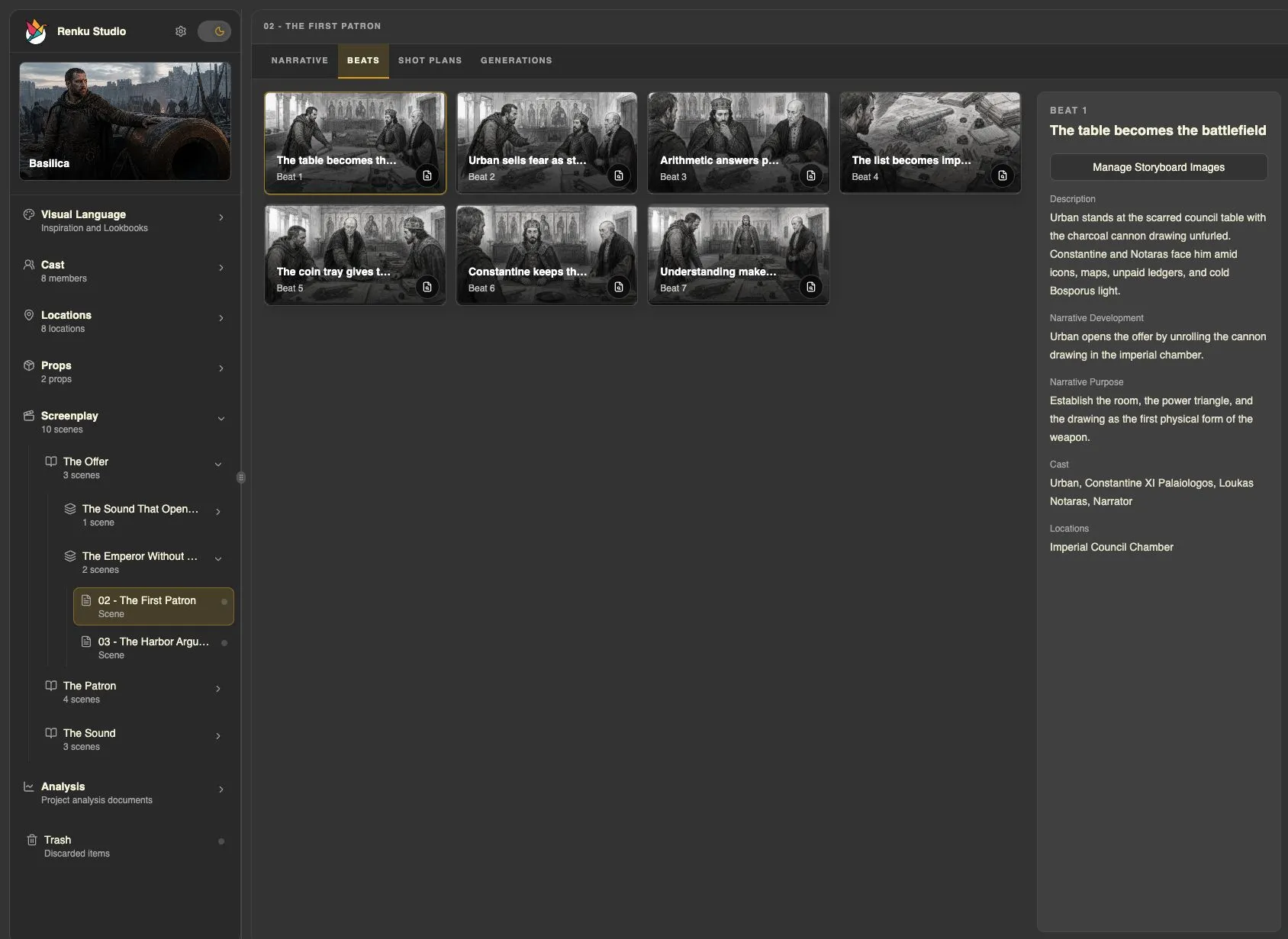
Media Producer turns saved Beats into storyboard images. Movie Director coordinates any missing Beat or Lookbook work, and the media workflow reads the exact scene context, chooses references, prepares the requests, and attaches the results to the corresponding Beats.
- Open your scene and ask for storyboards. If Scene Beat Designer already generated them, review those results first instead of requesting another full pass.
- The normal Movie Director workflow uses a reviewed Storyboard Lookbook Sheet for appearance. Character, Location, and Prop references supply continuity. Add a visual departure only when you deliberately want one.
- Follow the generation configuration and review steps presented by the agent. Media Producer handles batching the saved Beats and importing the images; you do not need to supply revision IDs or image-batch instructions.
Generate storyboards for the current scene.
Direct the next storyboard pass
Media Producer distinguishes a focused edit of an existing image from a new or substantially recomposed storyboard. Describe the result you want and what should be preserved; the skill chooses the appropriate image workflow.
- Review the sequence in Studio for clear action, emotional progression, and consistent characters and geography.
- Select or identify an image and give specific feedback. You can request a small adjustment or a different visual interpretation.
- If you want to change the narrative moments themselves, ask Scene Beat Designer to revise the Beats. For a project-wide change in storyboard appearance, ask Lookbook Designer to revise the Storyboard Lookbook.
In this storyboard image, make the character’s hesitation clearer. Keep the setting, costume, and composition.
Before moving on
You can follow the scene through the Beat Storyboards, and the important actions are legible. Next, choose Shot List planning for coverage or Blender Previs for spatial and timed staging.
Prefer to work in 3D? Continue with Blender Previs.