

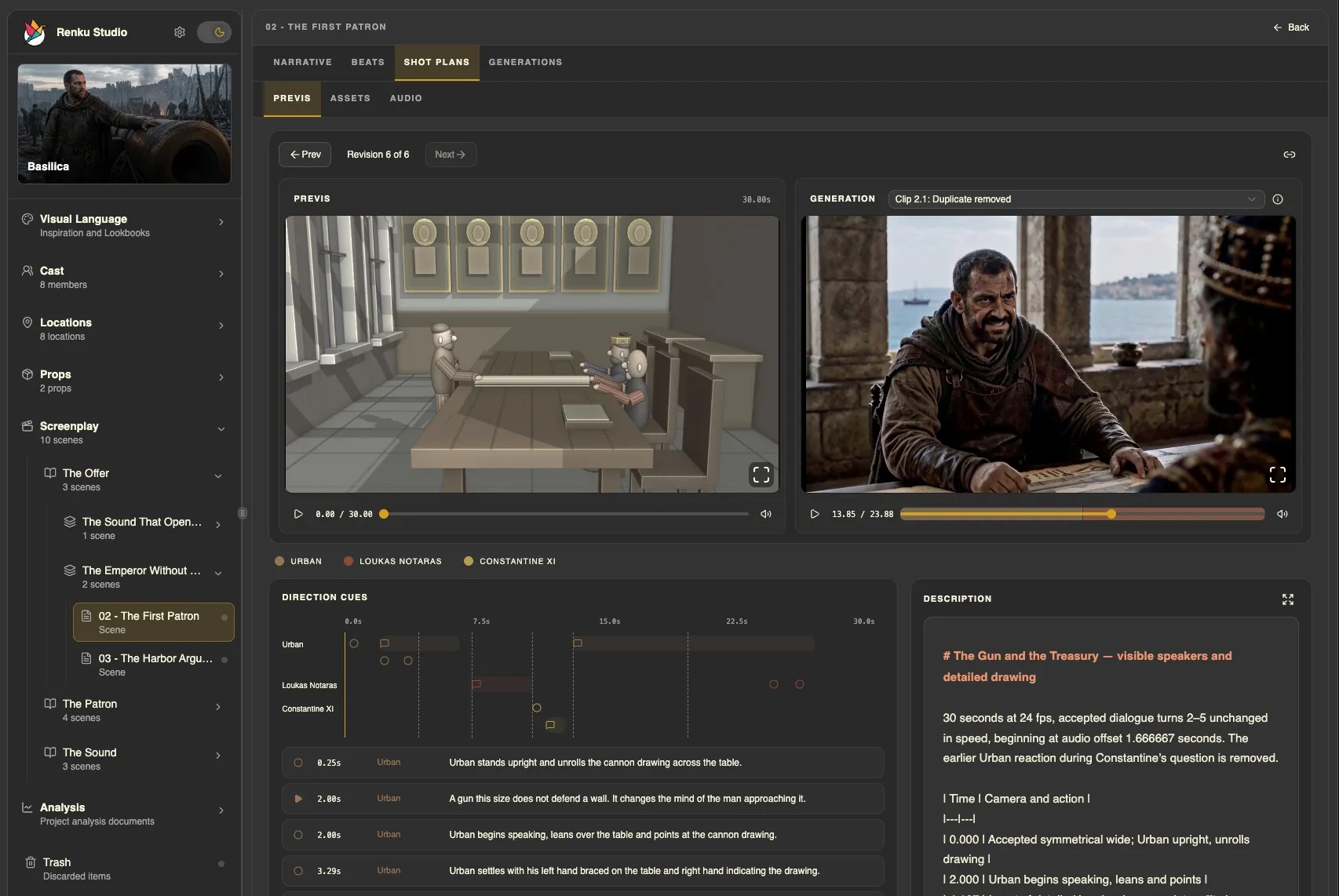
Before you begin
A reviewed Shot List or Previs Shot Plan, selected references, and a configured provider with generation access.
What you’ll do
A generated video take saved to your project, reviewed against the plan, with a clear next decision.
Give the dialogue a performance
The Media Producer skill generates dialogue takes for both Shot List and Previs Shot Plans, using the scene’s screenplay and the speakers’ Cast Voices. A take contains one dialogue Turn or a consecutive range of Turns. Performance direction changes the delivery; the screenplay supplies the words.
- Open the Shot Plan and ask for the dialogue you want, identifying a line or Turn. For a single Turn, the workflow supports Seed Audio or ElevenLabs. For a consecutive range, it uses Seed Audio. Ask for separate takes when the Turns are not consecutive.
- The agent resolves the speakers and their default voice references. Review the selected voices and give delivery notes, such as “Keep the opening restrained, then let the frustration show.” If a voice is missing or incompatible, resolve it with the agent before generating.
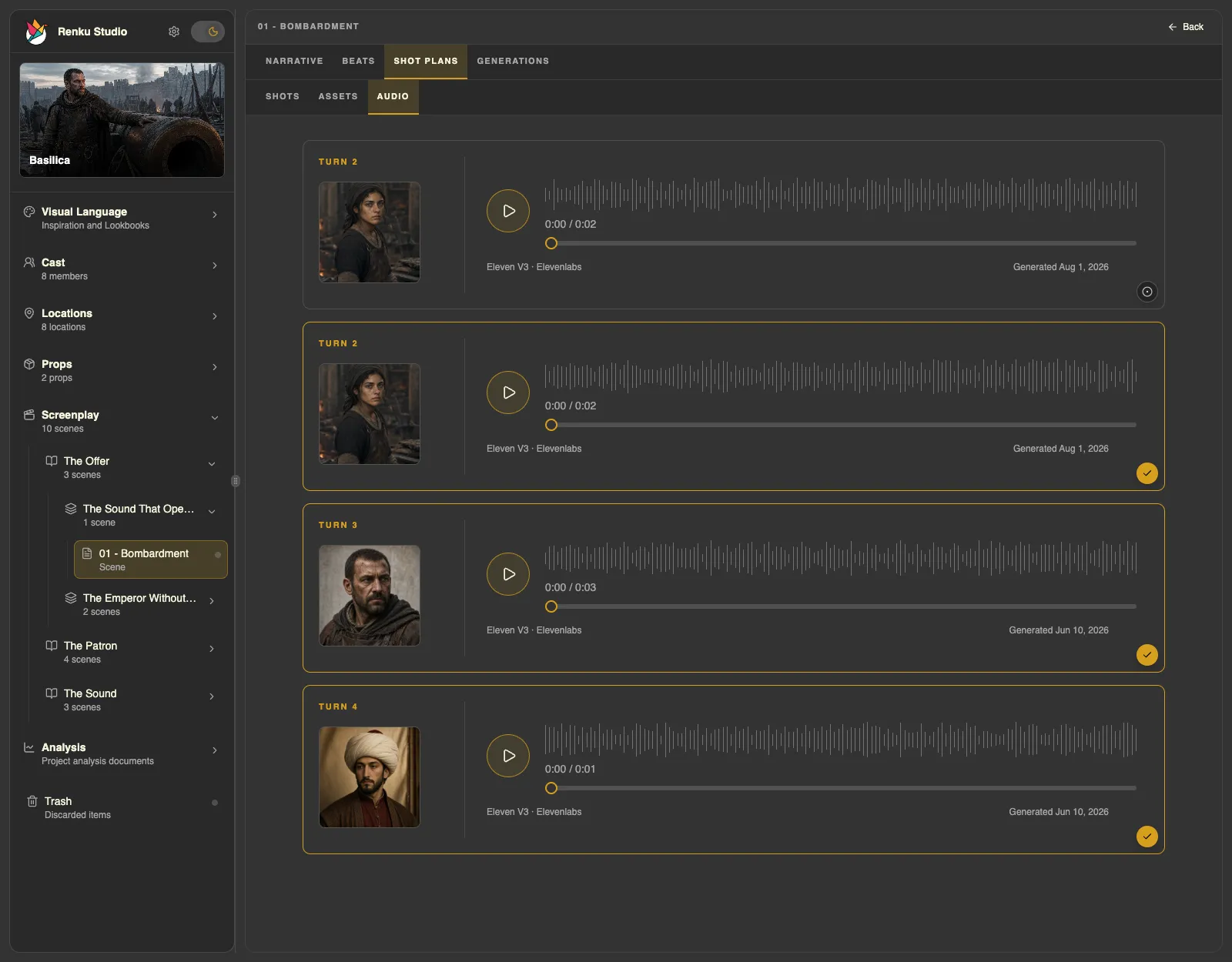
- Open the Shot Plan’s Audio tab to listen to the generated takes. Use the check control on each take you want as audio context. You can select several takes; generating another version does not automatically choose it or combine the performances.
- When preparing video, Media Producer checks whether the chosen model accepts uploaded audio references. A model that generates its own audio may not support this. If it cannot use your selected takes, choose a capable model with the agent or explicitly continue without those references. Audio conditioning guides the result; it does not guarantee an exact final mix or synchronization.
Generate dialogue for Turn 3 of this Shot Plan using ElevenLabs and Eleven v3. Keep the delivery measured and deliberate.
Choose the provider and model
Project Settings hold a default provider and model for each generation lane: Image Generation, Image Editing, Video Generation and Audio Generation. Name a provider and model when you have a preference, or let the workflow start from those defaults. The agent checks the model’s capabilities against the task and references before preparing the request.
- Ask for the result you want and optionally name the provider and model together, as in the example below. You can also ask the agent to help choose a model that supports your selected image, video, or dialogue references.
- When “Choose Provider and Model Each Time” is on for the lane, Codex shows an inline chooser preselected from the lane default; other agents ask you briefly. Tick “Save as Project default” to keep your choice, or “Don’t ask again” to stop the question for that lane.
- You can change the defaults and turn the question back on at any time in Project Settings, or by asking the agent.
Generate a video from this Shot Plan using Fal.ai and MiniMax H3 Max. Show me the generation preview before generating.
Review the request before generating
Media Producer reads the plan and relevant project context, inspects the references, and prepares a model-specific request. Studio’s Generation Preview dialog is titled Media Generation Request. Its Prompt, References, and Configuration tabs let you inspect what is about to be sent.
- In Prompt, check the action, performance, camera direction, and wording. If the prompt is editable, make your change and choose Update. You can also ask the agent to refine it.
- In References, check the actual images, video, and audio supplied to this request. Confirm that the intended character, Location, selected dialogue takes, and chosen previs revision are represented where the model supports them. If something is missing or wrong, ask the agent to correct the request and show it again.
- In Configuration, check the provider, model, and request settings. The estimated cost appears beside the actions; an estimate marked outdated no longer matches the edited request. References and configuration are reviewed here; ask the agent to change them.
- Follow the preview and confirmation steps configured for your project, or explicitly request a preview as in the example above. Updating or closing the dialog does not start generation or resume the agent. Return to the conversation to confirm when the request is ready.
Review the take and give direction
Media Producer inspects generated outputs and handles their attachment to the project. You review the cinematic result in Studio and decide what to keep or change. A precise edit request and a request for a new take can use different provider workflows.
- Watch the full take, paying attention to the action, performance, pacing, and visual continuity that matter to the scene.
- Identify the take and describe the change you want. You can also ask the agent to review it with you or explain a result that differs from the plan.
- Media Producer checks the selected model’s capabilities and prepares the next request. Review any new configuration or preview it presents according to your settings.
The character and framing work, but the camera starts moving too early. Can we delay that movement while keeping the rest?
Continue with the next scene
The Movie Director skill coordinates work across departments and reads the project’s current readiness when you ask what to do next. You can keep directing in ordinary language while it routes to the relevant specialist skills.
- Review which take you want to use and carry forward the character, world, and visual choices that worked.
- Open another scene and ask to develop it, or ask Movie Director for the next useful step. Existing context and your project settings guide the handoffs.
- Use your preferred editing application for final assembly, sound work, and delivery. This tutorial takes you through generated scene footage.
Help me develop the next scene using the visual direction we have established.
Before moving on
The take is saved and reviewed, and you know whether to accept it or request a specific revision. You have completed the full path from inspiration to a generated scene.